Migrating Goalscape Desktop Projects to the Web
If you have used the legacy Desktop app to create Goalscape projects, they will have been saved (as .gsp files) on the hard drive of the machine on wh…
If you have used the legacy Desktop app to create Goalscape projects, they will have been saved (as .gsp files) on the hard drive of the machine on which you created them. To upload them to the web app, login, go to your Home screen and click the 'up into the cloud' (Import goalscape) button at the top of the screen, then click 'Select file (gsp)' and find the GSP file on your hard drive. 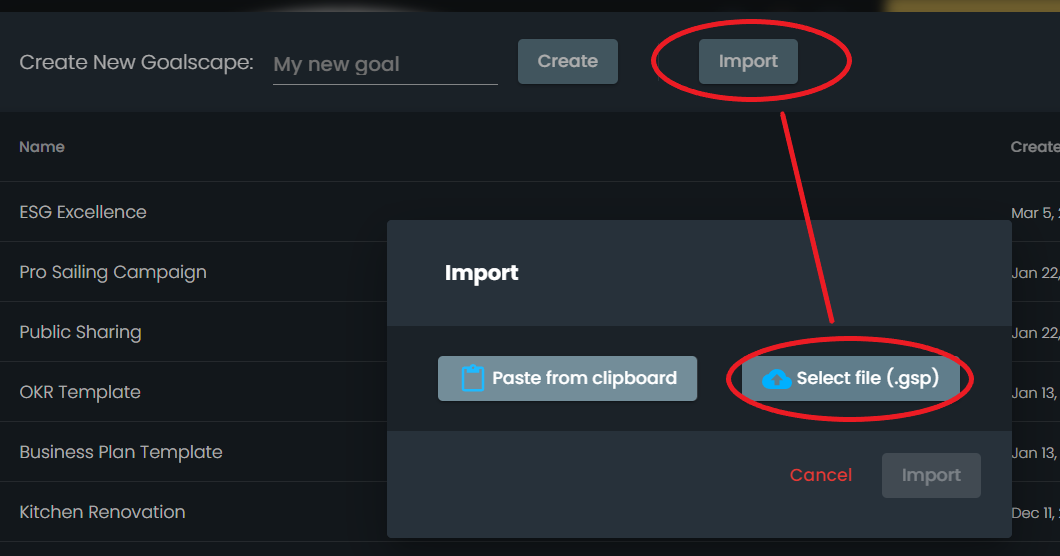 The uploaded goalscape will open straight away: you can update it and Share it with others.
Notes
- If the 'Import goalscape' function does not recognize your Goalscape file, please ensure that it has the correct '.gsp' extension (you can do this in File Explorer in Windows or Finder on a Mac).
- Goal Attachments are not transferred. You can re-attach the files to the relevant goals yourself in the Attachments tab, or by pasting them into the Notes. Or upload them to a third party filesharing facility like Google Drive or Microsoft OneDrive and use hyperlinks in the Notes field of the relevant goals to point to them.
If you have any trouble please email support@goalscape.com or use the Chat facility (Initials > Support in the Web App – or, if you have accepted cookies, click the bubble on any page of our website) – we'll help you fast!